Office network infrastructure includes cabling, switching, wireless coverage and communication rules. VLAN segmentation separates device groups, while firewall policies define permitted connections between them. Documentation and measurements support maintenance.
This article describes how network infrastructure for an office of up to around 50 workstations is built as a complete system — from cable runs and the network rack to wireless coverage, segmentation, security and documentation that any future technician can follow.
Build stages
- Layout. The positions of workstations, access points, cable routes and the network rack are defined.
- Structured cabling. Cat6 or Cat6A cable in trunking or above a suspended ceiling, wall outlets at workstations and patch panels in the rack.
- Testing and certification report. Every run is tested and the result documented. If a problem appears later, it is immediately clear whether the cable is the cause.
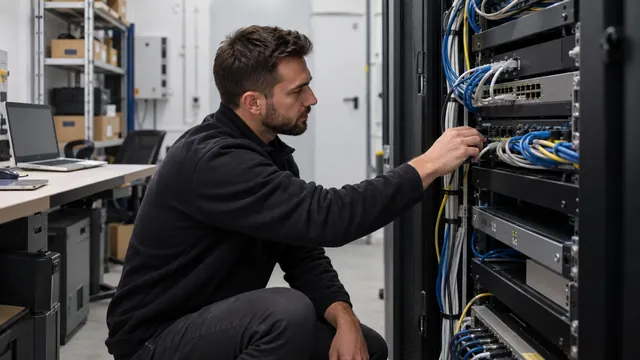
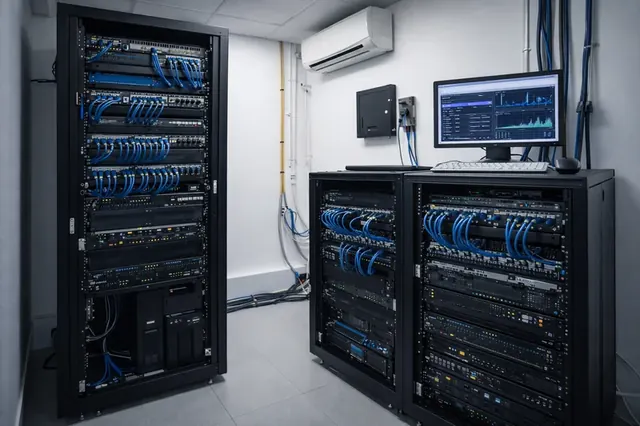
- Network rack. Tidy installation, organised patch cords and labelling of every run.
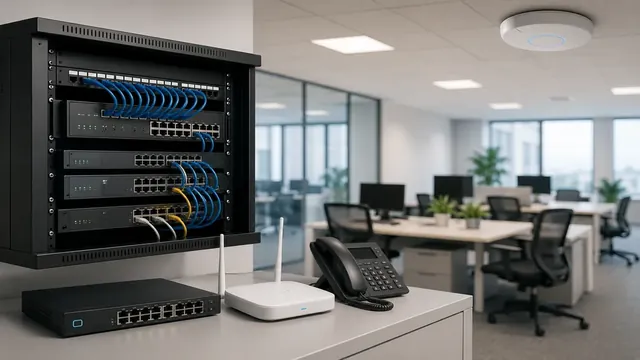
- Active equipment. A managed PoE switch for phones, cameras and access points.
- Wireless network. Wi-Fi 6 access points placed after a coverage survey, with seamless roaming between them.
- Segmentation. Separate VLANs for staff, guests, VoIP, cameras and access control.
- Security. A firewall with traffic rules, VPN for remote work and content filtering.
- Backup power. A UPS for the rack, so the network and telephony stay up during short power cuts.
- Documentation. Network diagram, cable run list and IP plan.
Network functions
- Gigabit connection to every workstation over Cat6/Cat6A structured cabling
- Every cable run tested and documented
- A tidy, labelled network rack
- PoE power for IP phones, cameras and access points
- Wi-Fi 6 coverage planned from an on-site survey
- A separate guest network with no access to internal resources
- VLAN segmentation for staff, VoIP, cameras and access control
- Firewall with rules and traffic logging
- VPN for remote work
- Operation through short power cuts thanks to a UPS
- Around 20% spare capacity for new workstations
- Complete documentation: diagram, cable runs, IP plan
What it consists of
- Cat6 cabling infrastructure (optionally Cat6A) — gigabit to every workstation and readiness for 10 Gb on backbone links
- Network rack — with patch panels and cable managers
- Managed PoE+ switch — with a power budget matched to the number of cameras, phones and access points
- Wi-Fi 6 (802.11ax) access points — with a separate, rate-limited guest network
- Firewall — with per-VLAN rules, VPN access and traffic logging
- UPS — with enough runtime to ride through short outages and to shut down gracefully during longer ones
Cabling: the foundation that stays in place
Active equipment is replaced every few years, while cables stay in the walls for a decade or longer. Cutting corners on cabling is therefore a false economy. Cat6 delivers gigabit to every workstation, while Cat6A provides headroom for 10 Gb where links require it.
Structured cabling standards allow a permanent link of up to 90 m from patch panel to wall outlet. Cables are routed away from power lines, without sharp bends and without overtightened cable ties. Each run is labelled with the same number at both ends — at the outlet and at the patch panel.
Testing with a cable certifier and the accompanying report are not a formality. When a workstation loses its connection a year later, the report shows whether the run was sound at installation and points the search towards the cable, the patch cord or the equipment.
VLAN segmentation: why guests should not see the cameras
On a flat network every device can see every other device. A guest's laptop, an infected computer or an IP camera with vulnerable firmware gets a path to the file server and the accounting system. Segmentation divides the network into logical parts:
- Staff — workstations and access to internal resources
- Guests — internet only, rate-limited and with no access to internal networks
- VoIP — telephony, with traffic prioritisation for clear calls
- Cameras — video surveillance, isolated from other devices
- Access control — controllers and readers on a separate network
The firewall defines which segment may talk to which. Rules follow the principle “everything not explicitly allowed is denied”, and the traffic log makes it possible to trace unusual activity.
Wi-Fi 6: coverage from a survey, not guesswork
A single powerful access point in the middle of the office is rarely the answer. Concrete walls, glass partitions, metal cabinets and lift shafts weaken the signal unevenly. Access points are placed after a coverage survey, usually on the ceiling, and operate as one network with seamless roaming — staff can move around with a laptop or phone without the connection dropping.
Where many devices are concentrated, more access points at lower power work better than a few at maximum power. Channels are planned so that neighbouring access points do not interfere, and the 5 GHz band carries the bulk of the traffic.
Documentation: the underrated element
The network diagram, cable run list, IP plan and equipment configurations turn the network from a black box into a system any qualified technician can maintain. Problems are located in minutes rather than hours. Administrator passwords are stored securely with the network owner, and configurations are backed up after every change.
Common mistakes
- No spare capacity. Without around 20% spare outlets and ports, every new workstation means a new cable and more wall chasing.
- PoE budget not calculated. A switch may have enough ports but not enough power for all cameras and access points.
- Rack without ventilation. Active equipment in a closed room with no airflow overheats and fails in summer.
- Default passwords and old firmware. Switches, access points and cameras with factory settings are an easy target. Passwords are changed and firmware is kept up to date.
- Guest network on the same segment. A separate Wi-Fi password is not isolation — without a VLAN, guests remain on the same network as staff.
- Untested UPS. Batteries age. The UPS is checked periodically, not for the first time during a real power cut.